
How to Plan Storage for Drone Footage — The Complete Pre-Flight Guide
Dipon | May 2026
Table of Contents
- Why Storage Planning Fails
- How Much Storage Does Drone Footage Use? The Numbers by Drone
- H.264 vs H.265 — What Codec Choice Means for File Size
- SD Card Speed Classes Explained: V30 vs V60 vs V90
- Recommended SD Cards for Drone Video
- Timelapse and RAW Storage — A Completely Different Calculation
- Planning Export and Delivery File Sizes (Often Overlooked)
- How Many SD Cards Do You Need for a Shoot?
- Common Causes: Why Drone Recording Stops Mid-Flight
- Read Next on Aero Timelapse
- FAQ
- Conclusion
Affiliate Disclosure
This guide contains affiliate links. Purchases made through these links support Aero Timelapse Studio at no additional cost to you. I only recommend products I personally use or carefully research. As an Amazon Associate I earn from qualifying purchases.
You’re 800 metres above the Dolomites. The light is exactly right — that narrow window between the clouds clearing and the sun dropping behind the ridge. And then your drone stops recording. “Storage full.” The shot is gone.
I’ve seen this happen on a pilot’s first mountain trip and I’ve come close to it myself — not always from running out of space, but from grabbing the wrong card and having the recording abort halfway through a take. The frustrating part isn’t the mistake. It’s that it happens because nobody explains storage clearly before you buy your first card or pack your kit bag. The spec sheets list numbers. The forums argue about brands. And you’re left guessing whether a 128 GB V30 card is fine or whether you need something faster and more expensive and why.
It isn’t complicated. It just needs someone to lay it out once, properly.
This guide gives you the complete system: how much storage your specific drone consumes per hour at each codec, what SD card speed class actually means for your recording reliability, how to size cards for a RAW timelapse session, and exactly how many cards to bring for any shoot scenario. To run the calculations fast — without doing the maths by hand — I built ShotCalc, a free drone and timelapse storage calculator at aerotimelapse.com/drone-storage-calculator/. But understanding the logic behind the numbers will make you a better pilot regardless of what tool you use.
By the end of this guide you will be able to pre-flight your storage the same way you pre-flight your batteries: fast, deliberate, and correct.
Key Takeaways
- A drone recording 4K H.264 at 150 Mbps (DJI Mini 4 Pro, Air 3) uses approximately 67.5 GB per hour of flight time.
- H.265 achieves roughly 40–50% smaller file sizes than H.264 at equivalent visual quality — always use it if your editing software supports it natively.
- V30 cards (30 MB/s minimum sustained write) cover any bitrate up to 240 Mbps, including all consumer DJI drones. V60 is required only for ProRes-adjacent formats above 240 Mbps.
- Timelapse RAW storage is driven by shot count, not duration. A 1-hour RAW timelapse on a Mavic 3 Pro at a 5-second interval can consume 58+ GB in stills alone.
- Always bring at least 2× the storage you calculate you need. One card is a single point of failure.
- ShotCalc (aerotimelapse.com/drone-storage-calculator/) calculates recording time, required V-class, export file sizes, and full RAW timelapse storage in under two minutes. No sign-up required.
Why Storage Planning Fails (and What It Actually Costs)
Most pilots spend serious time planning batteries, routes, and weather windows. Storage gets thirty seconds. The problem is that a storage failure on a commercial shoot — a real estate overflight over Ulm, an aerial package for a hotel on Lake Como — doesn’t just mean lost footage. It means a reshoot, a refund conversation, or a missed weather window you cannot buy back. For a hobbyist on a once-in-a-year trip to the Hohenzollern or the Dolomites, the cost is the same feeling: a shot you cannot redo.
The two failure modes are different and require different fixes. Running out of capacity means you packed insufficient GB for the day’s shoot. The card fails to write means you packed the wrong speed class for your drone’s bitrate. This article covers both — and ShotCalc automates both checks so you never have to do them from memory.
💡 Pro Tip: Make storage planning a pre-flight checklist item, not an afterthought. After you’ve charged your batteries and checked the weather, open ShotCalc, plug in your drone model and planned flight time, and confirm you have the right cards before you leave home.
How Much Storage Does Drone Footage Use? The Numbers by Drone
How much storage drone footage uses is determined by one number: bitrate. Bitrate tells you how many megabits the drone writes to the card every second. Everything else — resolution, frame rate, codec — feeds into that number. The formula to convert bitrate into storage consumption is:
GB per hour = (Bitrate in Mbps ÷ 8) × 3,600 ÷ 1,000
Example: A drone recording at 150 Mbps writes 18.75 MB per second, which equals 67.5 GB per hour. At 200 Mbps, that becomes 90 GB per hour.
Below are confirmed GB-per-hour figures using official DJI maximum bitrates, sourced directly from DJI’s spec pages:
| Drone Model | Mode | Codec | Max Bitrate | GB / Hour |
|---|---|---|---|---|
| DJI Mini 4 Pro | 4K / any fps | H.264 | 150 Mbps | ~67.5 GB |
| DJI Mini 4 Pro | 4K / any fps | H.265 | ~75 Mbps* | ~34 GB |
| DJI Air 3 | 4K / any fps | H.264 | 150 Mbps | ~67.5 GB |
| DJI Air 3S | 4K / any fps | H.265 | 130 Mbps | ~58.5 GB |
| DJI Mavic 3 Pro | 5.1K/4K (main) | H.264 | 200 Mbps | ~90 GB |
| DJI Mavic 3 Pro | 5.1K/4K (main) | H.265 | ~100 Mbps* | ~45 GB |
*H.265 bitrate is approximately 40–50% lower than H.264 at equivalent quality settings; exact values depend on mode and firmware.
Real drone flights don’t run for a full hour continuously — a DJI Mini 4 Pro gives you around 34 minutes of battery life at sea level. At 150 Mbps, one standard battery produces approximately 38 GB of H.264 footage. A four-battery shoot day on the Mini 4 Pro produces around 152 GB of 4K H.264. If you packed two 64 GB cards thinking that was plenty, you ran out halfway through battery three.
The calculation takes thirty seconds in ShotCalc’s Capture tab. Select your drone model, choose your shoot mode, pick your card size, and ShotCalc returns four things: how long that card lasts at that bitrate, your GB-per-hour storage rate, the minimum MB/s write speed your card must sustain, and the exact V-class required. Use it before every session — ShotCalc
H.264 vs H.265 — What Codec Choice Means for File Size
H.264 (AVC) and H.265 (HEVC) are two video compression standards. H.265 is the newer format and achieves approximately the same visual quality at roughly 40–50% of the bitrate of H.264. In storage terms, switching from H.264 to H.265 on a DJI Mini 4 Pro cuts your hourly consumption from ~67.5 GB down to ~34 GB — with no visible quality penalty for typical viewing purposes.
Why doesn’t every pilot default to H.265? Two practical reasons. First, H.265 is more computationally demanding to decode. Older laptops and budget editing machines often struggle with H.265 in the timeline, requiring proxy workflows before editing can run smoothly. Second, some platforms and client deliverable pipelines still prefer or require H.264 for maximum compatibility. My default for archive and stock footage is H.265 for the storage efficiency. For client deliverables where I don’t know the downstream edit chain, I sometimes shoot H.264 to avoid format conversion friction.
⚠️ Warning: On DJI drones, H.265 is not always available at every resolution and frame rate. Certain modes — 4K/100fps on the Mini 4 Pro, for example — require H.265 exclusively. Other modes default to H.264. Always check your actual camera settings menu rather than assuming.
ShotCalc’s Export tab goes one step further: it calculates H.264 vs H.265 file sizes for your specific clip duration and target platform side by side, so you can see the exact storage difference before you sit down to render. More on that in Planning Export and Delivery File Sizes section.
For a deeper look at codec choice in context of colour profiles, log formats, and overall drone camera setup, the Complete Drone Videography Guide covers the full picture.
SD Card Speed Classes Explained: V30 vs V60 vs V90
Video Speed Class is a memory card rating that guarantees a minimum sustained write speed under continuous load. The ratings are: V30 = 30 MB/s minimum, V60 = 60 MB/s minimum, V90 = 90 MB/s minimum. The large number printed on card packaging (like “200 MB/s”) is the peak read speed, not the sustained write speed that actually matters for video recording.
Drones write video data continuously. If the card cannot sustain the bitrate the drone is producing, one of two things happens: the recording drops frames or stops entirely with an error. That error is not recoverable in post-production.
Here is how to match V-class to your drone’s bitrate, using the same logic as ShotCalc:
Required write speed (MB/s) = Bitrate (Mbps) ÷ 8
V30 (30 MB/s sustained) covers any bitrate up to 240 Mbps. This includes all consumer DJI drones in standard video modes: Mini 4 Pro (150 Mbps), Air 3 (150 Mbps), Air 3S (130 Mbps), and Mavic 3 Pro in H.264 at 200 Mbps (200 ÷ 8 = 25 MB/s — within V30). DJI lists V30 cards as officially recommended for all of these models.
V60 (60 MB/s sustained) is required for bitrates between 240 and 480 Mbps. This is the territory of some Cinema-grade drones, external recorder setups, and ProRes 422 LT at the lower end. If you are shooting a mode that requires more than 240 Mbps, you need V60.
V90 (90 MB/s sustained) is required for bitrates above 480 Mbps — this is ProRes 422 HQ and ProRes 422 territory on the DJI Mavic 3 Pro Cine (3,772 Mbps and 2,514 Mbps respectively). At these bitrates, V90 is not sufficient on its own — you need a V90 card confirmed for sustained writes above 130 MB/s, such as the ProGrade Digital V90 or Sony Tough G.
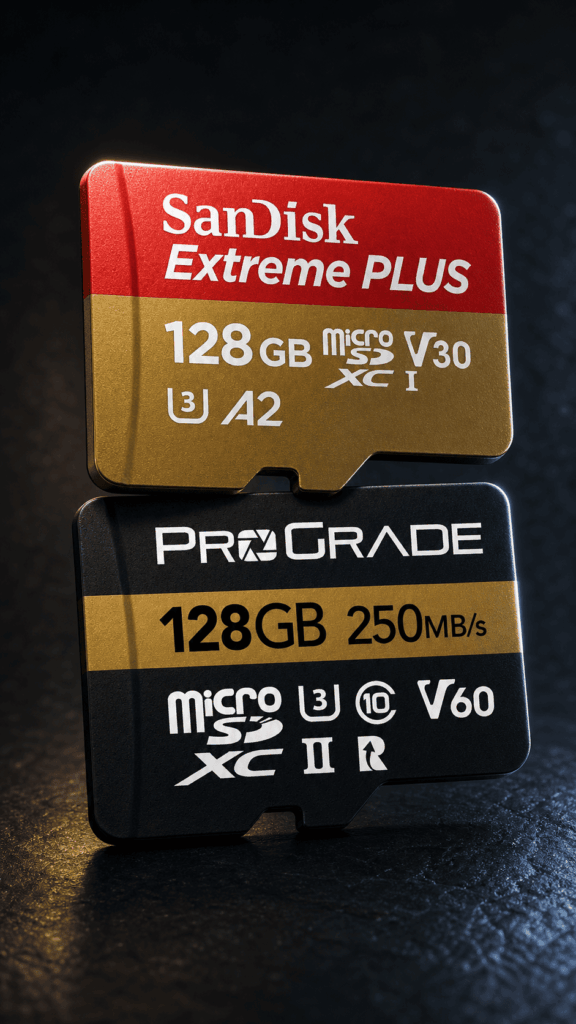
💡 Pro Tip: Open ShotCalc’s Capture tab, select your drone and mode, and it will calculate the exact write speed required and tell you the minimum V-class automatically. This takes fifteen seconds and eliminates all guesswork about card compatibility.
Recommended SD Cards for Drone Video
Every card recommendation in this section comes from personal use across commercial shoots in Southern Germany, the Dolomites, and Lake Como. Before the products, the decision framework — because the right card depends entirely on your drone:
Your drone’s max bitrate ÷ 8 = the minimum MB/s your card must sustain. V30 covers any result up to 30 MB/s (up to 240 Mbps). V60 covers up to 60 MB/s (up to 480 Mbps). If your drone is a DJI Mini 4 Pro, Air 3, Air 3S, or Mavic 3 Pro shooting H.264, you are within V30 territory. Full stop. Don’t pay for V60 you don’t need.
V30 — The Right Choice for Most DJI Drones
SanDisk Extreme PRO microSD — 128 GB
This is the card in my drone for most shoot days. For everyday 4K video on a DJI Mini 4 Pro, Air 3, or Mavic 3 Pro shooting H.264, the SanDisk Extreme PRO 128 GB handles everything without hesitation — I’ve never had a write error or a dropped recording on any DJI body I’ve run it on. The PRO delivers meaningfully faster sustained write speeds than the standard Extreme in real-world conditions, which also means faster offloads at the end of a long day. Best For: Hobbyists and pilots shooting standard 4K on Mini, Air, or Mavic series drones who want a reliable everyday card without overspending.
SanDisk Extreme PRO microSD — 256 GB
The 256 GB version is what I pack for full commercial days — anything involving multiple battery sets, mixed video and RAW timelapse, or a shoot where I cannot offload in the field. At 150 Mbps H.264 you get roughly 3.5 hours of continuous recording on a single card, which is more than any single shoot day will require. The larger card also means fewer swaps and fewer moments where a formatting mistake at the wrong time costs you footage. Best For: Pro pilots, stock shooters, and anyone running 4+ batteries in a day who wants to avoid mid-shoot card management.
V60 — For High-Demand Recording and RAW Timelapse
ProGrade Digital V60 microSD
The ProGrade V60 is what I reach for when I’m running extended RAW timelapse sequences — anything with a tight interval and large file sizes where a V30 card’s minimum guarantee starts to feel like it’s cutting it close rather than comfortably covered. The consistent sustained write performance is the reason I use this over alternatives: ProGrade publishes real sustained read and write speeds, not just peak numbers. I also use it as my primary card on any shoot where a client is paying for footage that cannot be re-done. Best For: RAW timelapse sequences with short intervals, pilots shooting on cinema drones above 240 Mbps, and anyone who wants a professional-grade reliability margin regardless of whether their bitrate technically requires it.
V90 — Cinema Drones with Full-Size SD Slots Only
ProGrade Digital V90 SD Card
The ProGrade V90 is relevant for one specific use case: cinema-grade drones with a full-size SD slot — most notably the DJI Inspire 3 — running Apple ProRes 422 or ProRes 422 HQ. At those bitrates (2,514 Mbps and 3,772 Mbps respectively), V90’s 90 MB/s minimum guarantee is the floor, not the ceiling. The ProGrade V90 delivers confirmed sustained write speeds above 250 MB/s, which is what ProRes 422 HQ actually demands. If you are not shooting ProRes on an Inspire-class drone, you do not need this card. Best For: DJI Inspire 3 and cinema drone operators shooting Apple ProRes formats who need a verified, high-sustained-write V90 card for professional productions.
⚠️ Important: This is a full-size SD card, not a microSD. It will not fit a DJI Mini, Air, or Mavic series drone without an adapter. Do not buy this card for a consumer DJI drone.
Timelapse and RAW Storage — A Completely Different Calculation
RAW timelapse storage works nothing like video storage. Instead of a continuous bitrate, you are accumulating individual still image files — each one the full uncompressed sensor output. The calculation is:
Total GB = Number of shots × File size per RAW image (in MB) ÷ 1,000
File sizes by drone sensor (approximate):
- DJI Mini 4 Pro (48 MP mode): ~20 MB per RAW DNG
- DJI Air 3 (48 MP): ~26 MB per RAW DNG
- DJI Mavic 3 Pro (Hasselblad 20 MP): ~26 MB per RAW DNG
- Full-frame mirrorless (e.g. Sony A7R IV, 61 MP): ~61 MB per RAW
Now the maths for a 2-hour golden-hour timelapse at a 5-second interval: 2 hours × 3,600 seconds ÷ 5 = 1,440 shots
Mini 4 Pro: 1,440 × 20 MB = 28.8 GB Air 3: 1,440 × 26 MB = 37.4 GB Mavic 3 Pro: 1,440 × 26 MB = 37.4 GB
That is for one sequence. A full location day with three timelapse sequences on the Mavic 3 Pro could consume 110+ GB in RAW stills before you record a single video clip.
The card write speed requirement for RAW timelapse is different from continuous video but equally important. You are not writing continuously, but you must complete each write before the next interval fires. A slow card — particularly a budget microSD with inconsistent write performance below its rated spec — causes missed frames, which ruins the smoothness of the finished timelapse. V30 is technically sufficient for most RAW timelapse intervals, but V60 provides the safety margin that eliminates missed frames on longer sequences with large files.
Don’t calculate this by hand. Use ShotCalc’s RAW Sequence tab: enter your total frame count from the Timelapse Interval Calculator, select your sensor preset, and ShotCalc returns the total sequence size in GB, how many 128 GB and 256 GB cards you need, and the rendered output file size.
Planning Export and Delivery File Sizes (The Part Most Pilots Skip Until It's Too Late)
I learned this lesson on a hotel job on Lake Como. The client needed social assets the morning after the shoot — Instagram Reels, a Vimeo showreel cut, and a broadcast-quality master for their marketing agency. I had planned my in-field card storage perfectly. What I hadn’t planned was that the broadcast master alone was going to be 11 GB on the export drive I’d brought, the Vimeo files were another 4 GB, and I was uploading over hotel WiFi at 11pm. The footage was fine. The night wasn’t.
Export file sizes depend entirely on the target platform and the bitrate you render at. They have almost nothing to do with the size of the original camera file. A 4K drone clip that records at 90 GB per hour on the card might deliver to YouTube at 1.65 GB per five minutes, or to a broadcast client at 3.75 GB for the same clip. The difference is about 2× — and it matters when you are sizing your export drive before a deadline or estimating upload time to a client server.
ShotCalc’s Export tab handles this calculation before you sit down to render. Select your target platform, enter the clip duration, and it returns the H.264 and H.265 file sizes side by side, plus estimated transfer time at USB 3.0 speeds. Reference figures for a 5-minute clip:
- YouTube 4K (35–45 Mbps H.264): ~1.65 GB
- Vimeo 4K (30–60 Mbps): ~1.1–2.25 GB
- Broadcast / Client Deliverable (75–100 Mbps): ~2.8–3.75 GB
- Instagram Reel (5–10 Mbps): ~188–375 MB
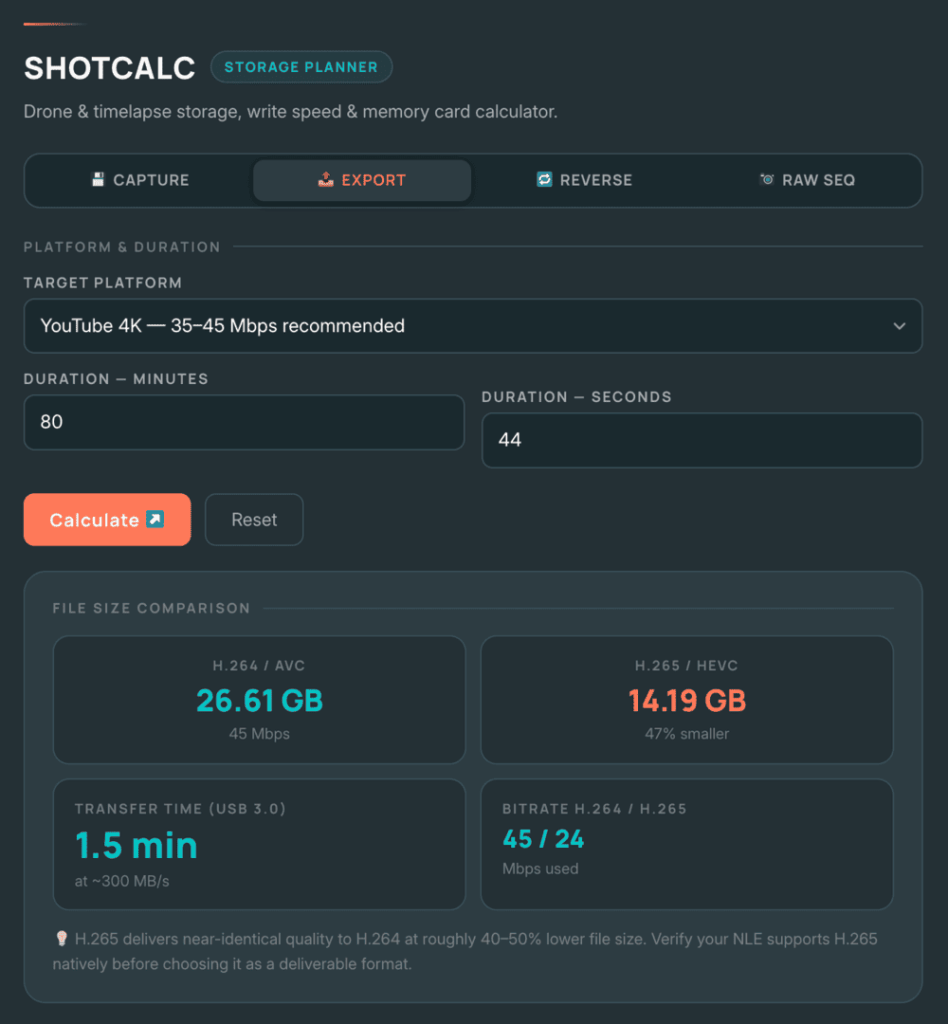
The Reverse tab solves the opposite problem: given a fixed amount of available space and a specific clip duration, what is the highest bitrate you can use without overflow? This matters in the field when you have been handed a client card with unknown remaining capacity, or when you are rationing space across multiple shots on a single card late in a shoot day. Enter the available space and clip duration — ShotCalc tells you the maximum bitrate and flags whether that bitrate is sufficient for the quality tier you need.
Neither tab replaces your export workflow. Both take under two minutes and eliminate the specific stress of arriving at an edit suite, a client delivery, or a post-production deadline without having thought through the numbers first.
How Many SD Cards Do You Need for a Shoot?
Here is the system I use before every shoot:
- Calculate total GB needed using ShotCalc’s Capture tab.
- Divide by your card capacity to get the number of cards required.
- Double it. Always.
The doubling rule exists because a single card is a single point of failure. Cards fail. Cards get lost in jacket pockets. Cards get formatted accidentally. I carry working cards in one clearly labelled wallet slot and shot-and-offloaded cards in a separate slot. I never leave a location with fewer than one empty card in reserve.
Practical examples using confirmed bitrates:
HOBBYIST — DJI Mini 4 Pro, 4K H.265, one afternoon out
- 3 batteries × ~28 minutes effective recording = ~84 minutes
- 84 min × 34 GB/hour = ~47.6 GB total
- One 64 GB V30 card covers it, but bring two.
- Recommended: Two 64 GB SanDisk Extreme V30 cards.
PRO PILOT — DJI Mavic 3 Pro, 4K H.264 + RAW timelapse, full commercial day
- 6 batteries of video at 200 Mbps = ~150 GB
- Two timelapse sequences (1,440 shots each × 26 MB) = ~75 GB
- Total: ~225 GB minimum
- Recommended: Four 128 GB V30 cards (512 GB total capacity), offload at midday.
⚠️ Warning: Never shoot an entire day onto a single card without offloading. If that card fails at day’s end, you lose everything. Build a midday offload to a portable SSD into your shoot schedule as a non-negotiable step — not optional, even when you’re running behind schedule.
Common Causes: Why Drone Recording Stops Mid-Flight
If your drone stops recording mid-flight with storage remaining on the card, the cause is almost always one of four things.
Write speed failure. The card cannot sustain the drone’s required write speed. This is overwhelmingly the most common cause, and it almost always involves a budget or counterfeit card. The fix is using a genuine V30 (or higher) rated card from a verified retailer. To check before your next flight, use ShotCalc’s Capture tab — it tells you the exact write speed required for your specific drone and mode, and confirms the V-class needed.
Incorrect formatting. DJI drones expect cards formatted in exFAT (for cards 64 GB and above) via the drone’s own camera menu, not via a PC’s format dialog. A card formatted on a Windows machine may produce unstable write performance that causes recording aborts. Format in-camera every time you start a fresh shoot day.
Card fragmentation or accumulated errors. Old, heavily used cards accumulate fragmentation and bad sectors. Even genuine branded cards degrade after hundreds of write cycles. If a card has been through a lot and starts producing intermittent write errors, retire it. A SanDisk Extreme V30 128 GB card costs around €20–25 in Europe. Your footage does not.
Incorrect storage routing. Some DJI drones carry internal storage in addition to a card slot. If the drone is configured to record to internal storage first and that fills up, some firmware versions will stop recording rather than switching to the card automatically. Check the DJI Fly app under Camera → Storage Settings and confirm the drone is routing to your card.
Read Next on Aero Timelapse
Everything in this article connects to a wider workflow. Here is where to go next:
- ShotCalc — Free Drone & Timelapse Storage Calculator — Four calculation modes: Capture (recording time + V-class), Export (delivery file sizes), Reverse (max bitrate for a given space), and RAW Sequence (timelapse stills storage). Two minutes before every shoot. No sign-up.
- The Complete Drone Videography Guide — The parent guide for everything in this article: codec choice, colour profiles, flight planning, and full workflow. Start here if you want the complete picture.
- Drone Buying Checklist — If you haven’t bought your drone yet, this 2026 checklist covers every question to answer before you spend money — storage specs by model included.
- Best Drones: Complete Buyer’s Guide — Side-by-side comparison of every major consumer and professional drone in 2026, with bitrates and storage requirements in context.
- Timelapse Interval Calculator — Calculate your ideal interval, total frame count, and clip output length. Feed that frame count directly into ShotCalc’s RAW Sequence tab.
- Drone Hyperlapse Calculator — Plans interval, distance, battery count, and card capacity simultaneously for hyperlapse sessions. Use it alongside ShotCalc.
- Best Professional Drones 2026 — If you are scaling to commercial work, this covers cinema-grade drones with their storage and card requirements in context.
- DJI Lito 1 & Lito X1 Review — DJI’s newest beginner series — worth checking the confirmed bitrate and SD card spec before you buy cards for it.
FAQ: How to Plan Storage for Drone Footage
How many GB per hour does a 4K drone use?
It depends on bitrate. A drone recording at 150 Mbps (DJI Mini 4 Pro, Air 3) uses approximately 67.5 GB per hour. At 200 Mbps (DJI Mavic 3 Pro main camera), expect 90 GB per hour. Switching to H.265 reduces this by roughly 40–50%. The formula is: (Bitrate in Mbps ÷ 8) × 3,600 ÷ 1,000 = GB per hour. ShotCalc at aerotimelapse.com/drone-storage-calculator/ runs this calculation automatically for any DJI model.
Do I need a V60 card for a DJI Mini 4 Pro or Air 3?
No. Both drones have a maximum bitrate of 150 Mbps, which requires only 18.75 MB/s of sustained write speed. This is well within what a V30 card (30 MB/s guaranteed minimum) can handle. A genuine V30 card like the SanDisk Extreme microSD is the correct and cost-effective choice for these drones. V60 is only required for bitrates above 240 Mbps.
What is the difference between V30, V60, and V90 SD cards?
Video Speed Class ratings guarantee a minimum sustained write speed. V30 = 30 MB/s minimum, V60 = 60 MB/s minimum, V90 = 90 MB/s minimum. The large number on card packaging (e.g. “200 MB/s”) is the peak read speed — irrelevant for recording. For consumer DJI drones (Mini, Air series, Mavic 3 Pro in H.264), V30 is sufficient. V60 and V90 are required for high-bitrate cinema formats above 240 Mbps.
How much storage does a RAW timelapse sequence need?
Calculate it by shot count: total shots × file size per RAW frame. A DJI Mini 4 Pro shooting in 48 MP RAW produces approximately 20 MB per frame; a Mavic 3 Pro produces approximately 26 MB per frame. A 1-hour timelapse at a 5-second interval (720 shots) on the Mini 4 Pro = ~14.4 GB. On the Mavic 3 Pro = ~18.7 GB. For a 2-hour sequence: double those figures. Use ShotCalc’s RAW Sequence tab at aerotimelapse.com/drone-storage-calculator/ to get exact values with your frame count and sensor preset.
Why does my drone stop recording mid-flight with space still on the card?
The most common cause is the card’s sustained write speed being too slow for the selected bitrate — usually a budget or counterfeit card that cannot maintain its rated speed under continuous load. Other causes include: incorrect formatting (always format in-camera via the drone’s camera menu, not on a PC), accumulated card errors from heavy use, or the drone routing to full internal storage instead of the card. Use ShotCalc’s Capture tab to verify the write speed your drone requires before every shoot.
How many SD cards should I bring on a drone shoot?
Bring at least twice the storage you calculate you need. For a hobbyist day on a DJI Mini 4 Pro shooting 4K H.265 across 3 batteries (~47 GB total), two 64 GB V30 cards is the correct setup. For a commercial day combining 4K video and RAW timelapse on a Mavic 3 Pro (~225 GB total), four 128 GB V30 cards with a midday offload to SSD is the professional standard. Never rely on a single card for footage you cannot reshoot.
Does H.265 reduce image quality compared to H.264?
No. H.265 (HEVC) delivers equivalent visual quality at roughly 40–50% of the bitrate of H.264. The only practical trade-offs are higher CPU demand during editing (older machines may need proxy workflows) and occasionally reduced compatibility with older client delivery pipelines. For personal archives and stock footage, H.265 is the better choice for storage efficiency. ShotCalc’s Export tab shows the exact file size difference for your specific clip duration and target platform.
What is the best SD card for drone timelapse RAW sequences?
For most consumer DJI drones shooting RAW timelapse, a genuine V30 card handles typical interval-based RAW writes without dropped frames. The SanDisk Extreme microSD 200 MB/s is a solid choice for its combination of consistent real-world write performance and fast read speeds for quicker offloading. For longer sequences or larger sensor files (30+ MB per frame), V60 gives you additional write speed headroom that eliminates any risk of missed frames at shorter intervals.
Conclusion: Plan Your Storage Before You Plan Your Flight
How to plan storage for drone footage comes down to three decisions you make before leaving home: the right capacity for your flight time and codec, the right speed class for your drone’s bitrate, and enough redundancy that a single card failure does not define the day.
The formula is simple: run your drone and planned shoot through ShotCalc’s Capture tab, confirm your V-class with the reference in section 4, and pack double. It takes two minutes and eliminates a failure mode that no amount of skill in the air can fix once it happens.
If you want to see how storage planning fits into the complete picture of a professional aerial shoot — codec choice, colour profiles, flight planning, and export workflow — start with the Complete Drone Videography Guide. Every element of the workflow lives there.
Dipon is a drone and timelapse cinematographer based in Ulm, Germany, with over 15 years of experience turning real spaces and projects into cinematic visuals. With a background in digital marketing, every shot is planned with a clear purpose — where it will appear, who will see it, and what it should help them decide.
You May Also Like

How to Shoot Milky Way Photos for Stacking

How to Shoot a Little Planet Photo With a Drone
Deflicker a Timelapse Without LRTimelapse: Free Tool for JPEG Sequences

Best Drones for Beginners (2026): Safe, Easy Picks + Buying Guide
Why Sensor Size Matters When You’re Buying a Drone

Timelapse vs Hyperlapse : What’s the Difference?
How Weather Affects Timelapse & Drone Shoots
DJI Lito X1 vs Mini 5 Pro: Which Ultralight Drone Belongs in Your Camera Bag?
DJI Mavic 4 Pro vs DJI Air 3S
DJI Air 3S Review: The Sweet-Spot Drone for Creators and Professionals
DJI Mavic 4 Pro Review: Is It Worth It for Professional Work? (2026)

Best Prime Week Drone Deals for Creators and Beginners
Need help capturing aerials for your next project but not ready to invest in the gear yet? Check out our Drone Videography to see how Aero Timelapse Studio can help elevate your production.