7 Timelapse Mistakes
Beginners Make
Dipon | January 2026
Table of Contents
Affiliate Disclosure
This guide contains affiliate links. Purchases made through these links support Aero Timelapse Studio at no additional cost to you. I only recommend products I personally use or carefully research. As an Amazon Associate I earn from qualifying purchases.
You spent three hours freezing on a rooftop. Your timelapse looks like a flickering mess, the clouds jerk across the sky like a broken flipbook, and the whole thing shakes like it was shot on a caffeine binge.
By the end of this guide, you’ll know exactly why your timelapse failed and how to fix every issue before your next shoot saving hours of frustration and memory card space.
If you only remember one thing: Manual mode is non-negotiable. Auto anything is your enemy.
Timelapse mistakes: Quick Fix Summary
| Mistake | Symptoms | Quick fix (1 line) |
|---|---|---|
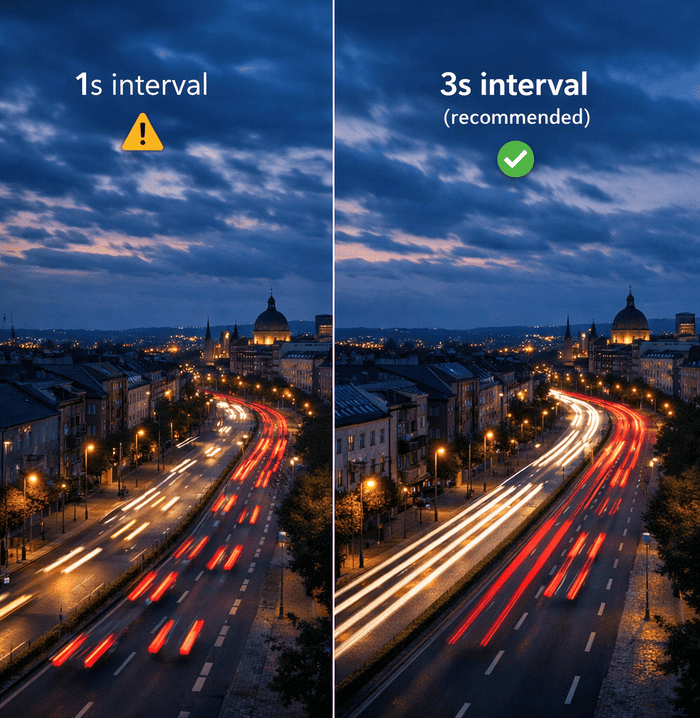
| Wrong interval | Playback too fast/slow; choppy or boring motion | Match interval to subject speed: 1–3s for clouds, 10s+ for shadows |
| Exposure flicker | Brightness jumps frame-to-frame; distracting pulsing | Shoot manual exposure; lock aperture physically if possible |
| Shaky footage | Micro-jitters; ruined sharpness; unprofessional look | Use sturdy tripod; add weight; disable image stabilization; avoid touching camera |
| Boring composition | Static shot; no visual interest; viewer loses attention | Add slow camera motion; use foreground elements; plan dynamic framing |
| Focus drift | Sudden sharpness changes; pulsing focus; ruined sequence | Switch to manual focus; tape down focus ring; disable AF in camera menu |
| White balance shifts | Color flicker; unnatural hues; inconsistent mood | Set fixed WB (Daylight/Tungsten); never use Auto WB; shoot RAW for safety |
| Insufficient planning | Dead battery mid-shoot; storage full; missed best light | Calculate total frames needed; bring 2x power; format cards before shoot |
Mistake 1 — Using the Wrong Timelapse Interval
One of the most common mistakes in timelapse photography is choosing the wrong interval between shots. The interval controls how fast real-world motion appears in your final video and getting it wrong can instantly ruin an otherwise beautiful scene.
What it looks like
Clouds race across the sky unnaturally, like they’re late for a meeting
Traffic jumps between positions instead of flowing smoothly
A 30-second clip takes several minutes before anything noticeable happens
When this happens, the motion feels unnatural and viewer engagement drops quickly.
Why it happens
The interval is the time between each photo in a timelapse sequence. It directly controls the playback speed of motion.
Too short → You capture more frames than necessary, wasting storage and processing time without improving motion
Too long → You miss motion increments, causing stuttery, jumpy playback
Beginners often guess an interval instead of calculating it based on subject speed and the desired final clip length.
source: mynewsdesk.com
How to fix it
Step 1: Decide your final video length
Aim for 10–15 seconds per timelapse clip. At 30fps, this equals 300–450 frames.
Different subjects move at very different speeds: Fast clouds or traffic: 1–3 second intervals Slow clouds, shadows, or construction: 10–30 second intervals
Step 3: Calculate total shooting time
Multiply the interval by the number of frames.
Example: 360 frames × 3-second interval = 18 minutes of shooting (360 frames = 12 seconds of video at 30fps)Set your shutter speed to roughly 60% of your interval to create natural motion blur and avoid stiff, staccato movement.
Step 5: When in doubt, choose a shorter interval
You can always speed up a timelapse in post-production, but you can never recreate motion that wasn’t captured.
Final Tip
The right interval makes motion feel smooth, cinematic, and natural. Take a moment to calculate it before you start shooting, it’s one of the easiest ways to instantly improve your timelapse quality.
The worst interval mistake I made was on a day-to-night timelapse over Magdeburg Dom. I set a 25-second interval thinking the transition would be slow and gradual. It was – until the city lights switched on all at once at dusk. In the final video, the skyline went from dark to fully lit in two frames. It looked like someone flipped a switch. Now I always tighten the interval to 8–10 seconds during the hour around sunset, even if it means more frames to process.
Gear that helps:
A reliable intervalometer is essential – whether built into your camera or external. I personally still use a Yongnuo MC-C3 Timer Remote Controller I bought over 10 years ago — it refuses to die. It’s hard to find now, but the Pixel TW-283 is the closest modern equivalent I’d recommend — same reliability, broad camera compatibility, and it even adds wireless triggering. For calculating your interval before you leave the house, the Aero Timelapse Interval Calculator does the math in seconds.
Mistake 2 — Exposure Flicker That Ruins Everything
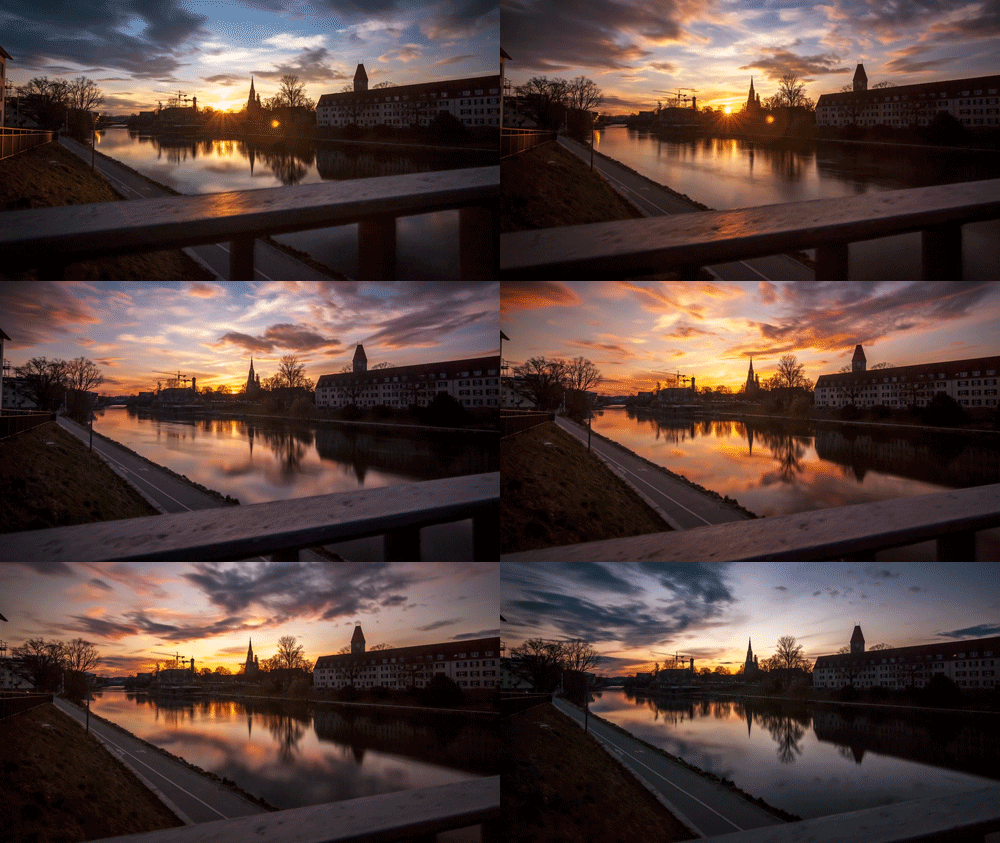
Exposure flicker is one of the most frustrating problems in timelapse photography. Even small brightness changes between frames become painfully obvious once the sequence plays back, and they instantly break the cinematic feel.
What it looks like
The timelapse pulses in brightness every few frames
It feels like someone is rapidly adjusting a dimmer switch
Flicker is most visible in sky gradients and uniform surfaces such as walls, water, or fog
Once flicker appears, it’s nearly impossible for viewers to ignore.
Why it happens
Exposure flicker usually comes from one (or more) of these three causes:
Aperture flicker
Every time your camera fires, the aperture blades open and close. Due to tiny mechanical tolerances, they never land in exactly the same position twice. At f/8 or f/11, this difference is large enough to change the amount of light hitting the sensor from frame to frame — and it shows up as a pulse in the final video.
Automatic exposure adjustments
If your camera is in any auto or semi-auto mode, it evaluates each frame independently and adjusts exposure to compensate for changing light. A cloud passes over the sun, the camera brightens. The cloud moves on, the camera darkens. Each adjustment is small — but across hundreds of frames, it creates a strobing effect that’s almost impossible to remove cleanly in post.
Artificial light flicker
LED and fluorescent lights don’t shine continuously — they pulse at 50Hz or 60Hz depending on the country. When your shutter interval doesn’t align with that frequency, some frames catch the light at a brighter phase and others at a dimmer phase. The result is a rapid, rhythmic flicker that’s especially visible in indoor or urban night timelapses.
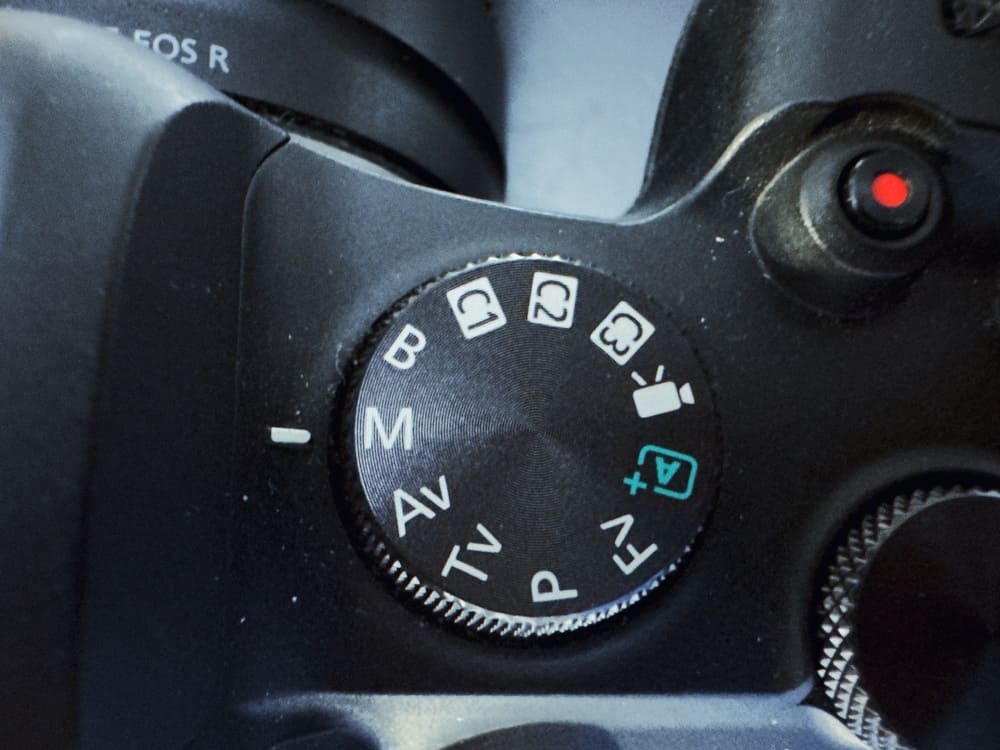
Always use manual mode for Timelapse
How to fix it
Set aperture, shutter speed, and ISO manually. Avoid auto and semi-auto modes entirely when shooting timelapse.
2. Use a long shutter relative to your interval
Longer shutter speeds help smooth exposure inconsistencies and produce natural motion blur. This also reduces the visibility of minor aperture variations between frames.
Aperture flicker comes from physical blade movement.
Best practices:
Use lenses with manual aperture rings when possible
Avoid stopping down unless depth of field truly requires it
Prefer wider apertures to reduce blade movement
(Camera-specific methods vary.)Light leaking through the viewfinder can influence exposure readings and introduce flicker. Use the built-in viewfinder cover or simply block it with tape.
5. Shoot wide and control light with ND filters
Shooting at f/2.8–f/4 significantly reduces aperture flicker.
Use ND filters to manage exposure instead of stopping down.6. For changing light (sunrise / sunset)
Use the Holy Grail approach:
Make small, controlled exposure adjustments every few minutes
Or use dedicated timelapse software to smooth exposure transitions in post-production
Final Tip
Exposure flicker is rarely caused by bad luck. In almost every case, it comes down to inconsistent settings or unnecessary automation. Lock everything down, slow your shutter, and let consistency do the work.
I lost a beautiful sunset shot over a lake in Bangladesh early in my career because I left ISO on Auto. The light was changing fast, the camera kept compensating, and the result looked like a broken disco light. Manual mode felt restrictive at first. Now I don’t even think about it – it’s the first thing I set before I touch anything else.
Gear/software that helps
- LRTimelapse offers advanced deflickering algorithms that analyze each frame and smooth brightness transitions. For day-to-night transitions, the Holy Grail Wizard automates exposure ramping.
- Neutral density filters let you shoot wide open in bright conditions.
Mistake 3 — Shaky Footage from an Unstable Setup
Nothing kills a timelapse faster than unwanted camera movement. Even vibrations that are invisible in a single photo become painfully obvious once the sequence plays back at video speed.
What it looks like
Subtle micro-vibrations make the footage feel like it was shot during an earthquake
Fine details lose sharpness and appear mushy
Small movements become exaggerated at 30fps
The timelapse feels unprofessional and uncomfortable to watch
Timelapse magnifies motion including motion you never intended.
Why it happens
Every vibration transfers directly to the camera during a timelapse:
Lightweight or travel tripods flex under wind or minor ground movement
Touching the camera introduces shake that affects multiple frames
Image stabilization systems attempt to correct movement and end up drifting between frames
DSLR mirror movement (mirror slap) creates small but visible vibrations
What looks stable in real time often isn’t stable enough for timelapse.
How to fix it
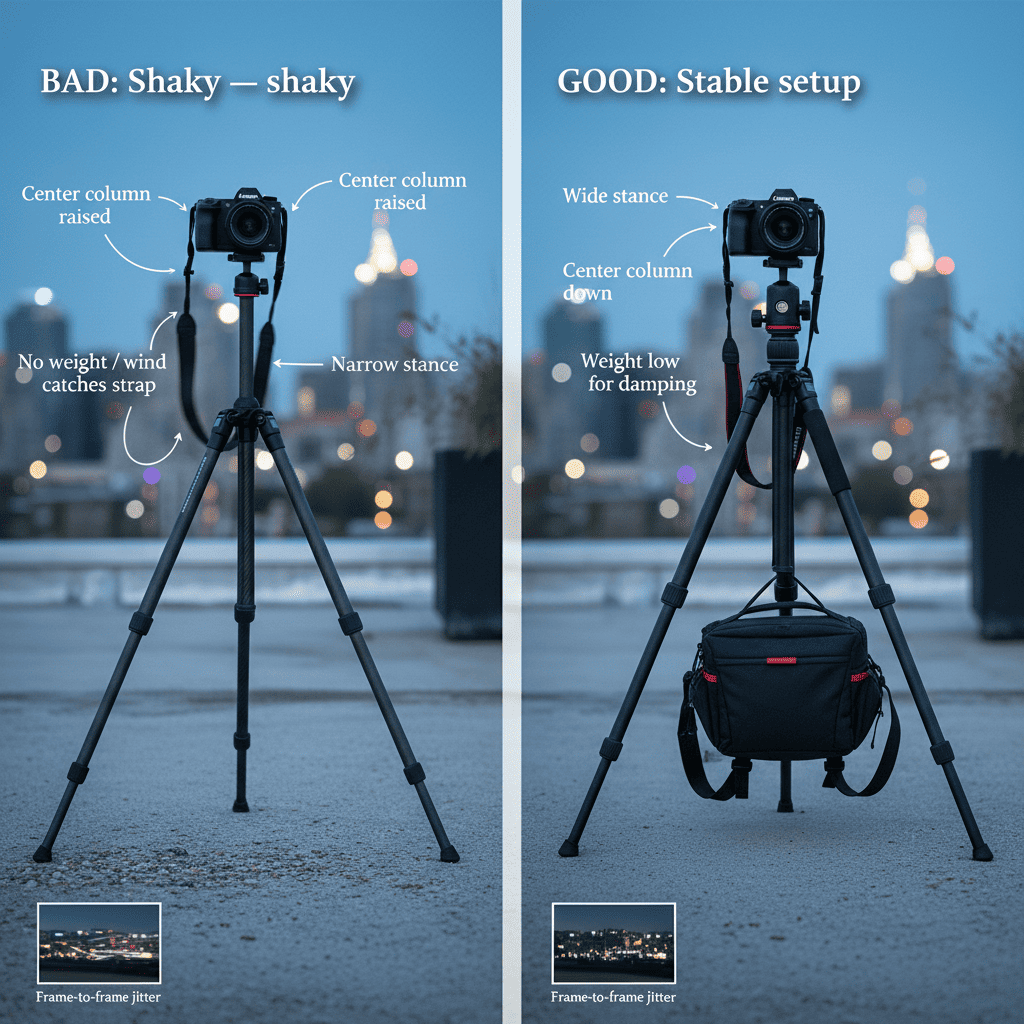
Avoid lightweight travel tripods when shooting timelapse, especially outdoors. A sturdy tripod should be your first serious investment.
Hang your camera bag or a weight from the tripod’s center hook. Even 2–3 kg can dramatically improve stability.
Turn off:
Lens image stabilization (IS / VR / OSS)
In-body image stabilization (IBIS)
These systems can cause frame-to-frame drift in timelapse sequences.4. Eliminate mirror movement (DSLRs)
Enable mirror lock-up or shoot in Live View mode to prevent mirror slap.
5. Protect the setup from wind
Use your body, a bag, or a natural barrier as a windbreak. Even light gusts can affect long exposures.
6. Don’t touch the camera during capture
Use a wireless remote or intervalometer. Pressing buttons transfers vibration directly into the system.
Loose intervalometer or power cables can pull on the camera. Tape cables to a tripod leg to remove tension.
Final Tip
If it moves, it will show. Timelapse demands far more stability than standard photography, lock everything down and assume even tiny vibrations matter.
I once hung my entire camera bag, about 4kg, from the center hook of my tripod on a windy evening shoot in Valencia. It looked ridiculous. The footage was perfectly smooth. Never underestimate what a bit of dead weight can do.
Gear/software that helps
- I use the Rollei C5i Compact Tripod – lightweight enough to carry on long shoots, but solid enough to handle wind without flexing. Carbon fiber construction dampens vibration better than aluminum, and for timelapse that difference shows up directly in your footage.
- A dedicated intervelometer such as Pixel TW-283 gives precise control without touching the camera.
Mistake 4 — Static, Boring Composition
A timelapse can be technically perfect and still fail, simply because nothing meaningful changes within the frame. Motion alone isn’t enough; the scene needs visual evolution to stay engaging.
What it looks like
Clouds move across the sky, but nothing else changes
The frame feels frozen despite the passage of time
Viewers lose interest after a few seconds
The sequence feels more like a looping GIF than cinematic footage
Without progression or depth, even beautiful scenes become forgettable.
Why it happens
Beginners often set up a tripod, press start, and walk away.
While static shots work well for long-term construction projects, they often fall flat in landscapes and city scenes.
Human vision is wired to notice change. Without camera movement, evolving light, or shifting foreground elements, the brain quickly tunes out. The timelapse becomes visually monotonous.
How to fix it
Include elements such as rocks, trees, railings, or architecture to create depth. Moving shadows across foreground elements add subtle but powerful motion.
2. Introduce slow camera movement
A motorized slider moving 1–2 meters over several hours can dramatically increase production value while staying subtle and cinematic.
3. Use gentle pan or tilt motion
Motorized pan/tilt heads allow slow 30–60 degree movements across the entire sequence, adding direction and flow.
Frame the shot so the most interesting light, color, or action happens mid-sequence, not immediately. The shot should feel like it’s going somewhere.
Recording in 4K or higher allows for cropping and simulated motion in post-production without quality loss.
Position the camera so foreground and background elements move at different speeds. Parallax instantly adds depth and a cinematic feel.
7. Adapt intervals during peak action
Slightly shorter intervals during moments of increased activity can help maintain energy and viewer engagement.
Final Tip
A good timelapse doesn’t just show time passing, it guides the viewer through change. If the frame never truly evolves, neither will the audience’s attention.
The first time I added a motorized slider to a cloud timelapse, I genuinely couldn’t believe the difference. Same sky, same clouds, same interval – but the slow push forward made it feel like a film. Static timelapse has its place, but once you feel what motion does to a shot, it’s hard to go back.
Gear that helps
The GVM Camera Slider Motorized is what I use for motion timelapse – smooth, programmable, and field-ready. If you’re not ready to invest in a slider yet, even composing with a stronger foreground element costs nothing and immediately improves the shot.
Mistake 5 — Focus Drift Between Frames
Nothing breaks the perceived quality of a timelapse faster than inconsistent focus. Even brief moments of softness stand out immediately once the sequence plays back at speed.
What it looks like
The sequence starts sharp, then suddenly softens for several frames
Focus snaps back unexpectedly mid-sequence
The effect feels jarring and unprofessional
Focus shifts often appear when lighting changes or something passes near the lens
Even a short focus drift can ruin an otherwise excellent timelapse.
Why it happens
Focus drift usually comes from one of these sources:
Autofocus hunting
When left in AF mode, the camera continuously searches for contrast to lock onto. A bird crossing the frame, a change in light, or a subject at the edge of the scene can cause the lens to refocus — sometimes only slightly, sometimes dramatically. In a timelapse played back at speed, even a subtle focus shift looks like a sudden lurch.
Accidental manual focus movement
You’ve set focus carefully, then you attach the intervalometer cable, adjust the ND filter, or simply brush the lens while walking past. The focus ring moves a millimeter. You don’t notice. The camera does. This is one of the most common and most avoidable causes of focus drift — which is why taping the focus ring down isn’t paranoia, it’s good practice.
Environmental changes
Temperature shifts can cause lens elements to expand or contract slightly over a long shoot. Condensation forming on the front element in cold or humid conditions can also degrade sharpness progressively across a sequence. These are slow changes, but in a 3-hour night timelapse, the difference between frame 1 and frame 800 can be visible.
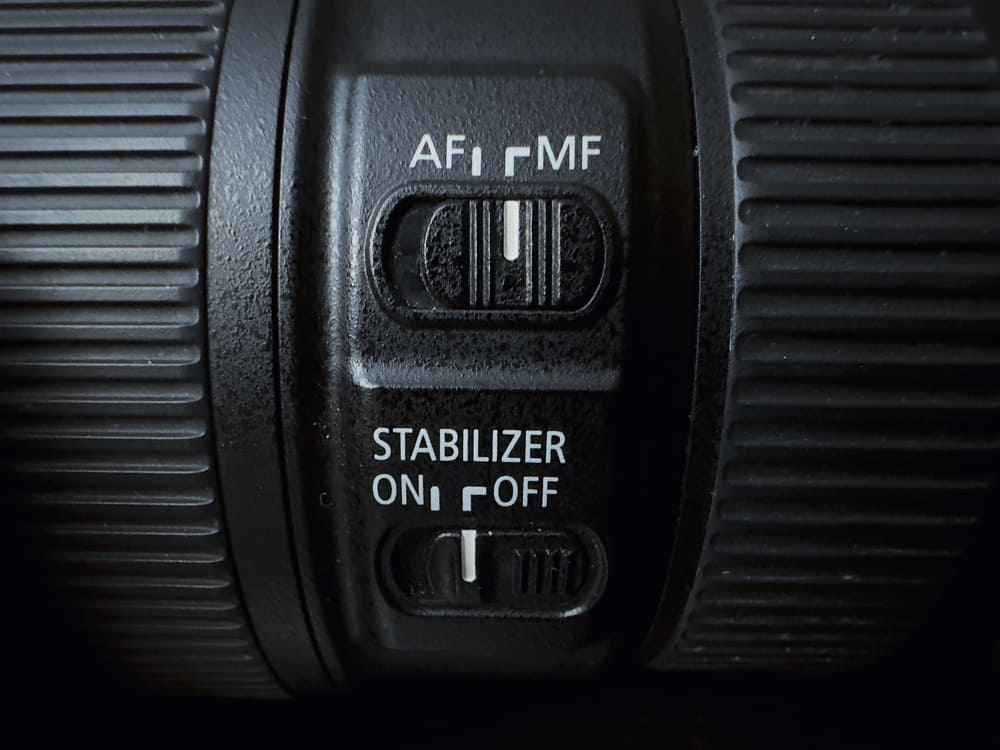
Always use manual focus and leave stabilization off
How to fix it
Set the lens to MF and manually focus on your intended subject. Never rely on autofocus for timelapse sequences.
Zoom the live view to 5× or 10× to achieve critical focus with precision.
Use a small piece of gaffer tape to prevent accidental movement of the focus ring.
Dial in focus before attaching ND filters, intervalometers, or power cables to avoid touching the camera later.
Ensure the AF-ON button cannot trigger focus changes during the sequence.
6. Use hyperfocal distance when appropriate
For landscapes, focusing roughly one-third into the scene maximizes depth of field and tolerance for minor shifts.
7. Verify focus before walking away
Review the first 5–10 frames at 100% zoom to confirm consistent sharpness before leaving the setup.
Final Tip
Timelapse rewards consistency. Once focus is set, treat the camera like it’s fragile, because even the smallest adjustment will show in motion.
I now keep a roll of gaffer tape in every kit bag specifically for the focus ring. After losing few timelapse to focus drift caused by nothing more than my own cable bumping the lens. Tape it. Every time.
Mistake 6 — White Balance Shifts Causing Color Flicker
Color flicker is one of the most distracting problems in timelapse photography. Even small shifts in color temperature become painfully obvious once the sequence plays back, especially during sunrise, sunset, or night scenes.
What it looks like
A sunset starts with warm orange tones, suddenly flashes cooler for a few frames, then turns warm again
Color temperature fluctuates unnaturally throughout the sequence
The footage looks like someone is randomly adjusting the tint slider during playback
Unlike exposure flicker, color flicker is often harder to fix in post-production.
Why it happens
Auto white balance (AWB) evaluates each frame independently.
As light changes, specially during golden hour, the camera continuously makes different color decisions.
Additional factors that worsen the issue:
Mixed lighting (sunlight combined with artificial lights)
Rapid changes in light color and intensity
Scene elements entering or leaving the frame
The result is inconsistent color from frame to frame.
How to fix it
Choose a white balance that fits the scene and lock it:
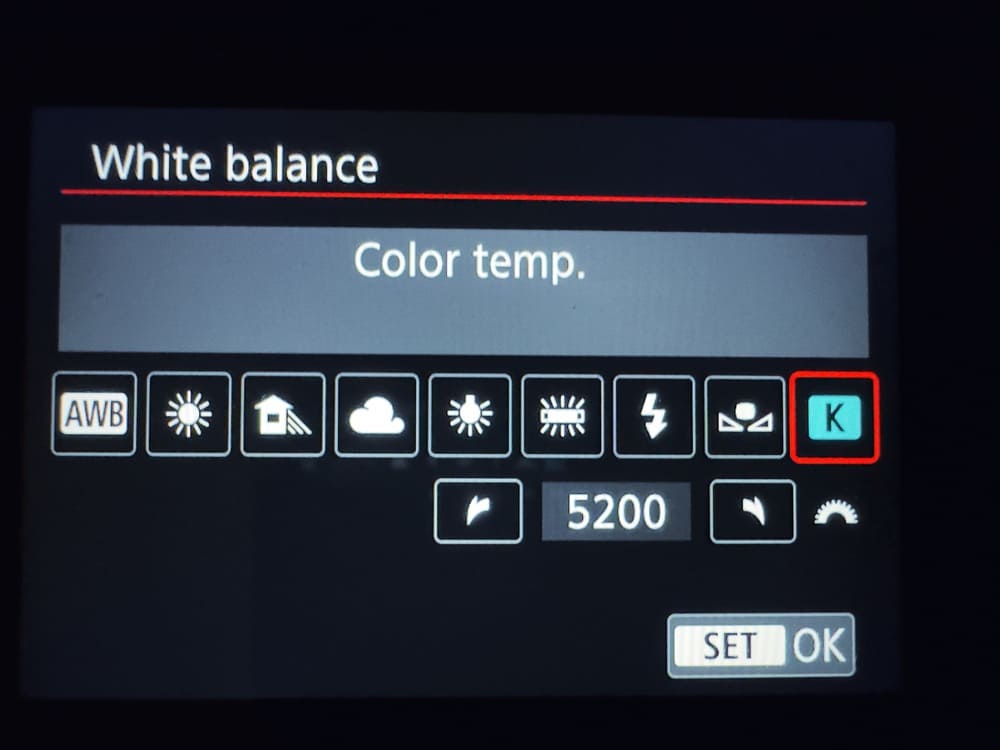
• Daylight (≈5200K) for golden hour and daylight scenes
• Tungsten (≈3200K) for city nights
Manual 5000K as a safe starting point if unsure2. Never use Auto White Balance
Auto WB is the cardinal sin of timelapse photography. If it’s on, color flicker is almost guaranteed.
RAW files preserve full color data, allowing you to batch-correct white balance in post without degrading image quality.
For scenes with changing light, set white balance for the start and end of the sequence, then interpolate between them in post-production.
5. Use a gray card when precision matters
Capture a reference frame with a gray card to accurately match white balance later.
6. Lock white balance before shooting
On some cameras, setting white balance in video mode and then switching back to photo mode helps ensure the setting stays locked.
7. Avoid mixed lighting when possible
Compose your shot so natural and artificial light sources don’t compete within the same frame.
Final Tip
White balance should feel invisible. If viewers notice changing color, the illusion of time passing breaks instantly. Lock it once and let the scene evolve naturally.
Auto white balance is the one setting I still catch myself forgetting on rushed setups. I’ll have everything locked – manual exposure, manual focus, intervalometer running, and then I’ll review the first 20 frames and see the color shifting. It’s always AWB. Lock it before you walk away from the camera, not after.
Gear that helps
Shooting RAW is your safety net here. If white balance is slightly off, you can batch-correct the entire sequence in Lightroom without any quality loss. LRTimelapse also allows white balance keyframing across a sequence – essential for day-to-night shoots where locked WB alone isn’t enough.
Mistake 7 — Shooting Without a Plan (Battery, Storage, Timing)
A timelapse can fail before it even begins, not because of bad technique, but because of poor planning. Running out of power, storage, or time turns a promising shoot into a wasted evening.
What it looks like
- The camera dies just before peak sunset color
The memory card fills up halfway through a meteor shower
You arrive too late and miss the best light
The final sequence is too short to be usable
When this happens, the disappointment is immediate and unavoidable.
Why it happens
Beginners often underestimate how long timelapse shooting actually takes.
Common planning mistakes include:
Not calculating how many frames are needed for a usable clip
Forgetting how quickly batteries drain during long exposures or cold weather
Underestimating RAW file sizes and storage needs
Misjudging how short golden hour or blue hour really is
Timelapse rewards preparation and punishes guesswork.
source: mynewsdesk.com
How to fix it
1. Calculate the required number of frames
Decide your final clip length first. Example: 15 seconds × 30fps = 450 frames Add a 10% safety margin whenever possible.
2. Compute total shooting time
Multiply the frame count by your interval.
Example:
450 frames × 4-second interval = 30 minutes minimum3. Bring at least three times the battery power
Cold weather can reduce battery life by up to 50%. Use a battery grip or external power bank for longer sessions.
Know your average RAW file size (typically 25–45MB).
Example: 450 RAW files × 35MB ≈ 16GB minimum
Use cards with:
64GB or more capacity
95MB/s or faster write speed
Always format cards before leaving.Plan to arrive at least 45 minutes before optimal light:
• Scout composition
• Level tripod
• Set focus and exposure
• Start the sequence before peak conditions beginApps like PhotoPills or Sun Surveyor show:
• Exact sun and moon positions
• Golden hour and blue hour duration
• Alignment for celestial events7. Test exposure before committing
Shoot a few test frames at your expected settings to confirm exposure and focus before starting the sequence.
8. Monitor remotely when possible
Use a smartphone app or remote trigger to check progress without touching or disturbing the camera.
Final Tip
Timelapse is less about reacting in the moment and more about thinking ahead. If your battery, storage, or timing fails, the best technique in the world won’t save the shot.
I missed the peak of a meteor shower while I was shooting in Allgäu, because I calculated frames but forgot to account for cold weather halving my battery life. The sequence cut out at the exact moment activity peaked. Now I bring three times the batteries I think I need. It feels excessive until the one time it saves the shoot.
Gear/software that helps
Apps like PhotoPills or Sun Surveyor for planning
Conclusion & Next Steps
Every timelapse mistake on this list is one I’ve made personally, some of them more than once. The flickering sequence from a forgotten AWB setting. The shaky footage from a tripod I trusted too much. The dead battery 20 minutes before peak light. None of them felt like learning at the time. All of them changed how I shoot.
The good news is that timelapse is an forgiving craft to improve at every shoot gives you clear, immediate feedback. Bad interval? You’ll see it in the first playback. Flicker? Obvious within seconds. Unlike other areas of photography where problems hide in subtle details, timelapse mistakes announce themselves loudly. That makes them faster to fix.
Pick the one mistake from this list that you’ve already made. Fix that one first. The rest will follow.
Your Next Step
Pick one mistake from this list that ruined your last timelapse. Write it on a sticky note or make a reminder in your phone. On your next shoot, commit to fixing only that issue. When you master it, move on to the next. Small, focused improvements compound quickly.
Go Deeper: Practical Ways to Level Up
Once you have the basics under control, these strategies take your timelapse to the next level:
1. Plan your sequence like a filmmaker
Use apps like PhotoPills or Sun Surveyor to track sun, moon, and celestial events
Scout locations ahead of time to find interesting foregrounds and backgrounds
Plan shot duration and intervals according to subject speed and final video length
2. Introduce subtle motion
Use sliders or pan/tilt heads for slow, consistent camera movement
Even 1–2 meters of slider travel over several hours adds cinematic depth
Combine horizontal and vertical motion to create parallax between foreground and background
3. Master exposure and flicker control
Use the 60% rule for shutter speed relative to interval
Lock manual exposure and white balance
Shoot in RAW to allow fine-tuning in post without degrading quality
4. Protect and stabilize your setup
Use a solid tripod and add weight to resist wind
Disable stabilization systems to prevent inter-frame drift
Monitor remotely to avoid touching the camera during capture
5. Optimize post-processing workflow
Batch-process RAW files to adjust white balance, exposure, and contrast consistently
Use timelapse software (e.g., LRTimelapse, Resolve, or After Effects) to deflicker and smooth sequences
Stabilize footage in post if small vibrations remain
6. Experiment and iterate
Test short sequences first to verify exposure, focus, and motion
Review critically and note what could be improved next time
Gradually add complexity, longer sequences, multiple axes of motion, or night-to-day transitions
Timelapse is a craft of planning, precision, and patience. Every mistake teaches something new. Focus on solving one problem at a time, and you’ll see steady improvement with every shoot.
Now, grab your camera and start shooting. Mistakes aren’t failures, they’re tuition in the school of timelapse. Every frame teaches you something new.
Frequently Asked Questions
What interval should I use for clouds/traffic/sunset?
Fast-moving clouds and traffic need 1–3 second intervals for smooth motion. For sunsets with changing light, start at 3 seconds and extend to 6 seconds as light fades. Slow-moving shadows or astronomical objects such as the moon or the stars work well with 10–30 second intervals. The key is matching interval speed to subject motion, when in doubt, shoot shorter intervals as you can always speed up in post.
How long should my timelapse be?
Aim for 10–15 seconds per clip in your final edit. At 30fps, that’s 300–450 frames. Calculate your total shoot time by multiplying frame count by interval (450 frames × 4-second interval = 30 minutes of actual shooting). For social media, shorter 5–8 second clips often perform better, while YouTube audiences expect 12–20 seconds per sequence.
Why does my timelapse flicker?
Flicker comes from three main sources: aperture blades opening slightly differently each shot (mechanical inconsistency), auto exposure changing settings between frames, or mixed lighting sources beating against your interval timing. The fix is manual everything—manual exposure, manual white balance, and physically locking your aperture if possible. For severe flicker, LRTimelpase can salvage footage with advanced deflickering algorithms.
RAW or JPEG?
Always shoot RAW for serious timelapse work. RAW files contain 10–14 stops of dynamic range versus 8 stops in JPEG, giving you massive latitude for exposure correction and white balance adjustments. The only time to use JPEG is when shooting ultra-long sequences (weeks/months) where storage becomes prohibitive, or for beginner practice when learning interval settings and composition.
Manual or auto exposure?
Manual exposure is non-negotiable for quality timelapse. Auto exposure creates brightness jumps between frames that appear as flicker. The only exception is the holy grail technique for day-to-night transitions, where you manually adjust exposure every few minutes or use specialized software. For all other scenarios, sunsets, clouds, astro, lock your settings in manual mode and never change them during the sequence.
How do I avoid shaky footage?
Use a sturdy tripod weighted with your camera bag (2–3kg minimum). Disable all image stabilization, lens IS and in-body stabilization cause inter-frame drift. Use mirror lock-up or Live View mode to eliminate mirror slap vibrations. Never touch the camera during shooting; use a wireless remote or intervalometer. In windy conditions, shield the tripod with your body or set up a windbreak.
Dipon is a drone and timelapse cinematographer based in Ulm, Germany, with over 15 years of experience turning real spaces and projects into cinematic visuals. With a background in digital marketing, every shot is planned with a clear purpose — where it will appear, who will see it, and what it should help them decide.
You May Also Like
The Complete Drone Videography Guide (2026)
Best ND Filters for Timelapse: Strength Guide & Picks
Stock Footage Metadata for Timelapse Contributors: How to Title, Tag & Describe Your Clips
Manual Drone Camera Settings: ISO, Shutter, Aperture Explained
Timelapse Interval Guide : Pick the Right Interval Fast
Best Stock Platforms for Timelapse: Pond5 vs Shutterstock (2026 Guide)
Drone Flying Tutorial : Beginner to Confident Pilot
What Timelapse Sells: Best Timelapse Subjects for Stock Footage
Timelapse Stock Footage Earnings: $3K/Month Case Study
Make money selling timelapse stock footage
Ultimate Timelapse Photography Tutorial: Settings, Techniques & Gear
Need help capturing professional timelapse for your next project but not ready to invest in the gear yet? Check out our Timelapse Video Production service to see how Aero Timelapse Studio can help elevate your production.