
• Free Tool – No Sign-Up Required
Getting your metadata right is the single biggest factor in whether your clips get found on Pond5, Shutterstock, and Adobe Stock – this generator does the heavy lifting for you. Generate platform-perfect titles, descriptions, and keywords for Shutterstock, Pond5, and Adobe Stock in under two minutes – with 20 one-click shot presets, 80+ global landmark autocomplete, and CSV batch export.
3
20
125+
100%
Platforms Supported
MetaShot Pro Non‑AI
Deterministic, platform-aware metadata generator — keyword buckets, ordering, validation, templates, batch CSV, and drag-and-drop keyword ranking for Shutterstock, Pond5 & Adobe Stock.
One click to pre-fill all fields — then fine-tune as needed.
Batch uses the same inputs for all rows, with optional variation mode below.
Pick a season to see keyword suggestions — toggle individual chips on/off before generating.
Generate unique titles and descriptions for similar clips in a series — each emphasises a different angle.
≥ 5 words; factual sentence describing subject matter. No "beautiful/stunning/amazing".
What it shows → use-case → technical spec. 2–3 sentences.
Min 7, max 50. CSV export uses comma-separated keywords.
Official Pond5 formula: Subject + Technique, Specific, Location, Time, Weather, Resolution. 40–80 characters. Pond5 indexes both title and description heavily.
Pond5 indexes descriptions as keyword space. Use factual, buyer-relevant language.
Aim for 40–50 keywords. Buyers are editors and filmmakers — use precise terms.
Adobe Stock title carries primary metadata weight. 8–12 words. Per official guidelines: no resolution specs (e.g. 4K), no camera brand names in title or keywords.
Adobe's algorithm weights the first 10 keywords most heavily. Drag to reprioritise. Resolution specs (4K etc.) are automatically excluded per Adobe's official contributor guidelines.
CSV includes Filename, Title, Keywords. Resolution and camera brand terms excluded automatically per Adobe's official guidelines.
Affiliate Disclosure
This page contains affiliate links. Purchases made through these links support Aero Timelapse Studio at no additional cost to you.
Why It Matters
Good Metadata Is Your Sales Team
Stock footage platforms like Shutterstock, Pond5, and Adobe Stock are purely search-driven. No metadata means no visibility — and no sales. The difference between a clip that earns $0 and one that earns $500 per month is almost never the footage quality. It’s the metadata.
Search Discoverability
Every keyword you add is a search query your clip can rank for. A 4K city timelapse with no keywords is invisible. The same clip with 40 optimized keywords can appear in dozens of high-intent buyer searches daily.
Platform Algorithm Weight
Shutterstock and Adobe Stock’s ranking algorithms weigh metadata completeness, keyword relevance, and first-position terms. Optimized metadata directly improves where your clips appear in filtered search results.
Higher Conversion Rate
Buyers who find a clip via a precise search query (e.g. “aerial city timelapse golden hour Tokyo”) have higher purchase intent than those browsing broadly. Specific, long-tail keywords attract buyers who convert.
Editorial Risk Protection
Incorrectly labeling editorial-only footage as commercial can result in rejected submissions or legal exposure. MetaShot Pro flags known landmarks and trademarks that require editorial designation before you submit.
MetaShot Pro is a free stock footage metadata generator built specifically for timelapse photographers, drone videographers, and stock video creators. Unlike generic metadata tools, MetaShot Pro understands the specific vocabulary buyers use when searching for aerial footage, timelapse clips, hyperlapse video, and location-specific b-roll – generating keyword sets that map directly to how creatives and media buyers actually search.
The tool uses a bucket-weighted keyword engine: each keyword is assigned to a semantic category (technique, subject, location, time, mood, special technique, buyer intent, concept) and weighted accordingly. High-value terms – your technique and subject – appear first. Generic filler terms fall to the bottom. The result is a keyword list that’s both complete and strategically ordered, ready to paste directly into any platform’s upload form. Want to understand why metadata structure matters? Read the complete guide to timelapse stock footage metadata.
Step-by-Step Guide
How to Use MetaShot Pro
From zero to export-ready metadata in under two minutes. Here’s exactly how to get the most out of every field.
Choose a Shot Preset – or fill manually
Start with one of 20 Quick Presets organized into four categories: Urban/City, Nature/Landscape, Aerial/Drone, and Industry/Architecture. Clicking a preset like Aerial City Night or Golden Hour Nature instantly populates Technique, Subject, Time of Day, Weather, Motion, Angle, Mood chips, and Special Technique chips simultaneously — eliminating your biggest time sink. For custom shots with no matching preset, fill each dropdown manually.
Enter your specific subject or landmark
Type into the Specific Subject / Landmark field to trigger the autocomplete database of 125+ global landmarks and natural landmarks — from the Eiffel Tower and Shibuya Crossing to the Matterhorn, Lofoten Islands, Lake Como, and Plitvice Lakes. Natural landmarks are labelled separately in the autocomplete so you can distinguish them from architectural landmarks at a glance. Selecting a landmark automatically populates the city and country fields and injects landmark-specific tags (e.g. selecting "Colosseum" adds "ancient", "amphitheater", "Rome", "Italy"). If your subject isn't a landmark, type a descriptive phrase like "busy intersection", "downtown waterfront", or "mountain ridge".
Toggle Mood and Special Technique chips
The Color & Mood chips inject buyer-intent search terms like "cinematic", "warm tones", "dramatic", and "moody" — terms buyers routinely filter by. The Special Technique chips add high-value technical tags: "light trails" for long-exposure night traffic shots, "star trails" for astrophotography timelapses, "loop ready" for looping background footage, and "deflickered" for cleaned timelapse sequences. These terms attract specialist buyers who are actively looking for exactly what you shot.
Review and reorder your keywords
Switch between the Shutterstock, Pond5, and Adobe Stock tabs to review platform-specific keyword lists. Each list is capped at that platform's maximum (50 for Shutterstock and Pond5, 49 for Adobe Stock). On the Adobe Stock tab, the first 10 keywords are highlighted in amber — these carry the most algorithmic weight, so drag your strongest, most specific terms to the top. Use the Auto-order button to re-sort by the tool's internal weighting system at any time.
Copy metadata or export to CSV
Use the individual Copy buttons to paste titles, descriptions, and keyword strings directly into each platform's upload interface. For large batches, switch to Batch mode, paste your filenames (one per line), and click Export Batch CSV to download a ready-to-import spreadsheet. Shutterstock and Pond5 both accept CSV bulk uploads — this single export can save hours on a 50+ clip library.
Save as a template for future clips
If you frequently shoot the same type of footage — night city timelapses in Berlin, golden hour aerials in the Alps, construction site sequences — save your current settings as a named Template. Templates store all field values, chip selections, and keyword order in your browser's local storage. No account needed. Load any template instantly for your next batch upload, then tweak just the filename and specific subject.
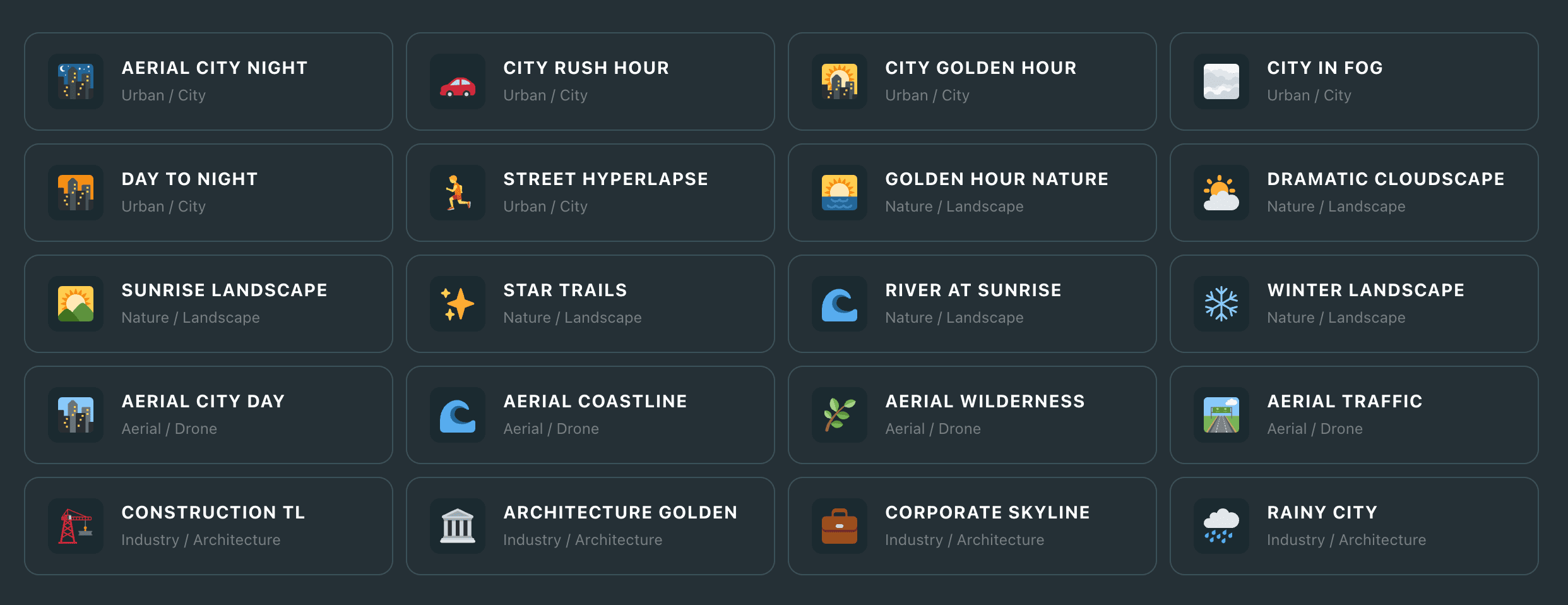
Shot Presets
20 Presets for Every Shot Type
Each preset pre-fills every relevant metadata field with the correct vocabulary for that shot type — eliminating guesswork for new users and saving repeat time for experienced contributors. Select a preset, add your location, export.
Best Practices
Stock Footage Keyword Rules
Bad keywords don’t just fail to help — they can actively get your clips rejected or deprioritized. These rules apply across Shutterstock, Pond5, and Adobe Stock.
DO THIS
Use specific long-tail phrases ("aerial city timelapse golden hour")
Include technique, subject, location, and time in your first 10 keywords
Add buyer-intent terms ("establishing shot", "b-roll", "background loop")
Include both city and country as separate keywords and as a pair
Tag special techniques: "light trails", "star trails", "loop ready"
Match your keywords to what's actually visible in the shot
Use mood/tone terms buyers filter by: "cinematic", "dramatic", "warm tones"
Include industry verticals: "real estate", "corporate", "travel tourism"
AVOID THIS
Brand names: DJI, Canon, GoPro, Sony (platform violation)
Resolution specs: 4K, UHD, 1080p — prohibited on Adobe Stock but Safe to use on Shutterstock and Pond5.
Superlatives: amazing, stunning, beautiful, best (spam signal)
Platform names: Shutterstock, Getty, iStock (auto-rejected)
Keywords for content not visible in the shot (keyword stuffing)
Repeating the same word in different keywords ("city", "city skyline", "city aerial")
Celebrity or brand names without proper licensing/releases
Generic filler: "nice", "good", "quality", "video"
Keywords in multiple languages (use the platform's language only)
Quick Answer –Where should I sell my stock footage?
For timelapse and aerial footage specifically, Pond5 is where the buyers are — it’s the platform most actively searched by editors and directors looking for these exact formats, and you set your own price. Shutterstock is worth adding in parallel for the sheer volume of buyers running through it daily; more eyeballs means more passive sales on your back catalogue without any extra work. Not sure which platform fits your footage best? My full breakdown of the best stock platforms for timelapse covers both in detail.
Frequently Asked Questions
What is a stock footage metadata generator?
How many keywords should I use for Shutterstock?
Shutterstock allows 7 to 50 keywords per clip. For best discoverability, aim for 30–50 specific, relevant keywords. Avoid repeating the same word in different keyword phrases and never use keyword stuffing — Shutterstock can deprioritize or reject clips with spammy metadata. MetaShot Pro validates your count in real-time and warns you if you’re outside the recommended range.
How many keywords does Pond5 allow?
Does keyword order matter on Adobe Stock?
What makes a good stock footage title for Shutterstock?
How do I write keywords for a timelapse video?
What's the difference between commercial and editorial stock footage?
Can I generate metadata for multiple clips at once?
What keywords should I avoid in stock footage metadata?
How do shot type presets work?
Shot type presets are one-click configurations that simultaneously pre-fill all metadata fields: technique, subject, time of day, weather, camera motion, camera angle, resolution, use case, industry vertical, and both mood and special technique chip selections. There are 20 presets across four categories — Urban/City, Nature/Landscape, Aerial/Drone, and Industry/Architecture. After applying a preset, you only need to add your specific location and any extra keywords, then export. It reduces average setup time from ~5 minutes to under 30 seconds.
Platform Optimization
Sell on Every Major Platform
Each stock footage marketplace has different metadata requirements, keyword limits, and algorithmic priorities. MetaShot Pro generates separate, platform-tuned outputs for all three simultaneously.
Shutterstock
Most Traffic
7-50
Keywords
15–40%
Royalty
Shutterstock is the world’s largest stock media platform with over 2 million active buyers. For video, Shutterstock requires at minimum a title of 5+ words, a description, and 7–50 keywords. Titles must be factual and non-promotional — no superlatives. MetaShot Pro validates title word count and keyword range in real-time, and flags editorial-risk landmarks before you submit.
Shutterstock tip: The platform’s internal search algorithm rewards keyword specificity and relevance over volume. 30 precise, relevant keywords outperform 50 loosely related terms. MetaShot Pro’s bucket-weighted engine prioritizes relevance automatically.
Pond5
Best Royalties
10–50
Keywords
60%
Royalty
Pond5 is the leading independent stock footage marketplace and the most contributor-friendly platform in the industry — offering a 60% royalty rate and the ability to set your own prices. Timelapse and drone footage consistently rank among the top-performing categories on Pond5, driven by demand from documentary filmmakers, ad agencies, and broadcast producers.
Pond5 tip: Pond5’s title and description fields are heavily indexed for search — treat them like keywords, not just descriptions. Include your technique, subject, time of day, and location naturally within the text.
Adobe Stock
Creative Cloud
5–49
Keywords
35%
Royalty
Adobe Stock is embedded directly into Photoshop, Premiere Pro, After Effects, and the rest of Creative Cloud — putting your footage in front of the largest community of professional creatives on the planet. Adobe Stock’s search algorithm gives disproportionate weight to the first 10 keywords, which appear in search result previews. Keyword order is critical.
Adobe Stock tip: Use MetaShot Pro’s Adobe tab, which automatically highlights your top-10 priority keywords in amber. Drag your most specific and commercially valuable terms — location, technique, time of day — into those top 10 slots before exporting.
Quick Answer –Is selling stock footage worth it?
The short answer: yes, if you shoot the right subjects the right way. The long answer is in the article Make Money Selling Timelapse Stock Footage.
Ready to Stop Leaving Money on the Table?
Every unoptimized clip in your library is a missed sale. Generate complete, platform-ready metadata for all three platforms in under two minutes — free, forever.